top of page

Contact Us
Enterprise Pricing & Devices Recommendations
Distributors are available in many countries to assist you.
Leave your contact and we will have the local distributor help you.
Live chat available on bottom right.
Field Worker Insights
Search


Setting Up Default Channel
You can set the Default channel that you want to always listen to. The VoicePing will auto switch back to the Default Channel after some seconds when you go to another channel. This will help the user not miss any important message that coming on the Default Channel. See the video for easier guide
Aug 211 min read


How To Change VoicePing Volume
You can change the VoicePing Volume to find the most comfortable volume based on your experience. There are 3 Volume Modes available in VoicePing: Medium Mode: The icon showing as Medium Speaker and the volume is set to Half. Max Mode: The icon showing as Max Speaker and the volume is set to Max. Ear Speaker Mode: The icon showing as Ear Speaker Mode and the sound will come from the ear-speaker of the device. To change the volume mode, please check out this video:
Aug 211 min read
NBT Seecode Bluetooth Pairing Problem
In case you have a problem pairing the NBT Seecode device, please follow the following steps to resolve the issue: 1. Exit VoicePing App. 2. Open the Android settings app and go to the Bluetooth connection settings. 3. Unpair and Re-Pair the connection of the Bluetooth device. To enter the pairing mode on Seecode device side, please power off the device, then long press the power button again to turn on the device and enter the pairing mode. 4. Close the Android settings app
Aug 211 min read
Update App via Play Store without Login Account
Kindly follow all these steps to update App via Play Store without Login Account: 1. Open the Play Store App. 2. Tap the 3 dots button then choose Updates. 3. Wait for the device to scan the update. 4. Choose the App that you like to update from the list. 5. Tap the Update button beside the app name to proceed with the update. 6. Wait for the installation to be completed. 7. Once the installation is completed, the App is ready for use.
Aug 211 min read


How to make tone louder
If you feel like the tone of your VoicePing is not loud enough, you can change the tone volume and the tone sound through the VoicePing setting. These are the following steps on how to make tone louder : 1. Open your VoicePing app, tap the 3 (three) dots in the right upper corner 2. Tap "Setting" 3. Scroll down until you find "Tone Sound" and "Tone Volume", then you can choose which sound you desire to use and how high the volume you prefer. If you like to have a tone played
Jul 81 min read
How to Turn Off Airplane Mode
In order to turn off the Airplane Mode, you will need to go to the phone settings and disable the Airplane Mode from there. Please following the below section to turn off the airplane mode: 1. Please exit the TalkieLock App (if you are locked inside the TalkieLock). Please check this article for how to exit the TalkieLock: https://smartwalkie.freshdesk.com/support/solutions/articles/33000265081-exit-talkielock-on-the-device 2. Open the phone Settings. 3. Choose the "More Netw
Jul 81 min read


Keyboard Won't Appear When Trying to Type
If you ever facing this problem when you trying to type but the keyboard won't appear, please follow these steps to switch the keyboard. 1. Open the “Settings’ App on your device. 2. Inside the “Settings”, Go to the “Language and Input” section. 3. Tap the “Current Keyboard” button 4. 1. Choose the “Android Keyboard (AOSP)”. 2. Tap “Choose Keyboard” button. 5. Disable the “Vysor” Keyboard by tapping the toggle. 6. Once the Vysor Keyboard is disabled, your keyboard would appe
Jul 81 min read
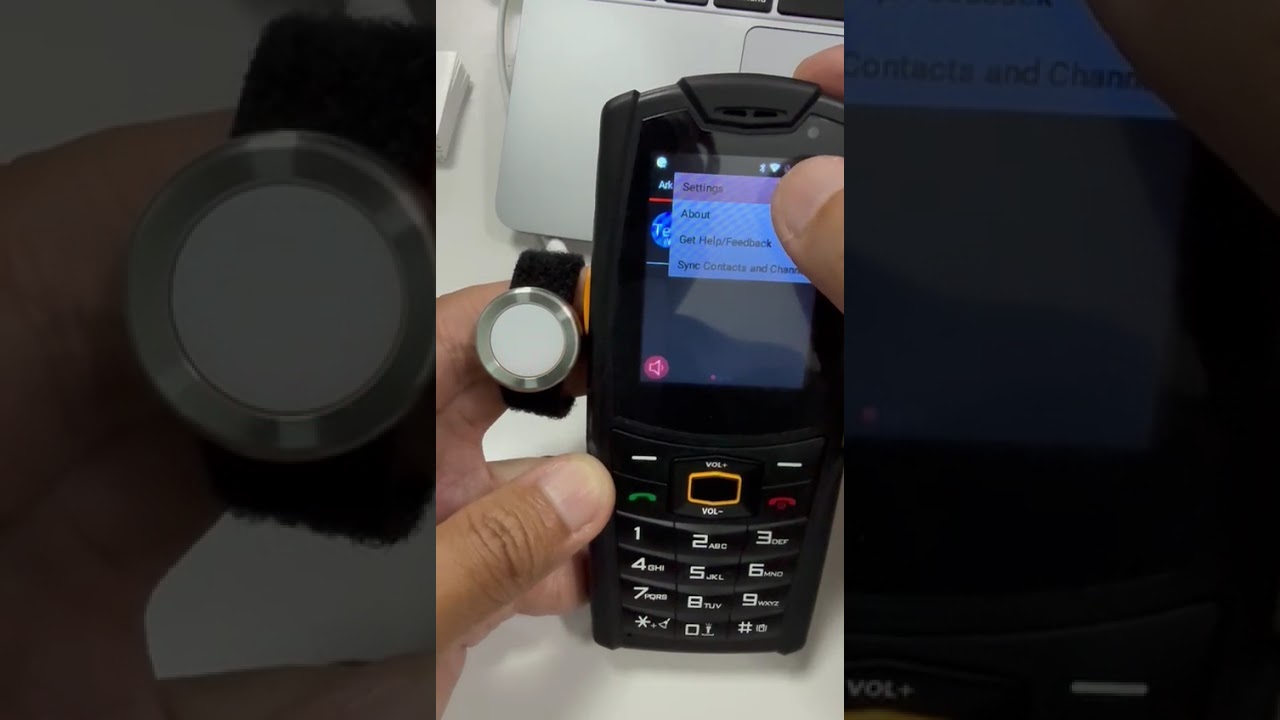
Connecting AGM M7 with BLE Bluetooth Device
How to Connect AGM M7 with BLE Bluetooth Device? Please follow the steps below: 1. Please open your AGM M7 phone settings, choose "Connected Devices" and turn on bluetooth. 2. Go back to home page and open Voiceping app. 3. On Voiceping app, tap the 3 dots on right upper corner and choose "Settings" 4. On setting page, scroll down until and choose "Hard Button". 5. Under Connection type, choose "BLE" and press your BLE device once and you should see the red light blinks on t
Jul 81 min read


NYC - OBS Device or Accessories Exchange Locker Process
When a user facing an issue with their device, user can contact Smart Walkie Whatsapp Hotline (+65 9118 7121) to report the issue. If the issue is software related, Smart Walkie team will assist to solve through chat, voice call or video call. If the issue is hardware related, such as; charging issue, screen damage, speaker issue, totally dead device, etc user can do 1-1 exchange in the locker. The locker is located in at Coney Campus right at the bike parking lot. Please see
Jul 81 min read


What to do if 4G and signal bar are available but VoicePing is disconnected
If you ever happen to encounter a moment where you see 4G icon is available, signal bar is full but Voiceping unable to send or receive any messages as it shows "Cannot send message because ws is disconnected", here is how to solve it. Please note that steps below might be different depends on device type, example below is using Voiceping Teams 1. Open phone settings 2. Go look for Network and Internet> Mobile Network > Access Point Names > choose the proper APN based on your
Jul 81 min read


How to Update VoicePing version
As we keep trying to give the best experience for all our users, we push an updated version into each clients' dashboard once in a while. We push an update batch by batch and once the update is pushed, there will be a pop up to update on VoicePing app. How to check and update VoicePing app version: Open VoicePing app Tap 3 dots on right upper corner > Settings Scroll down to the bottom, you will see VoicePing version; e.g 3.1.0 nps xxxxxxxx If there is an update you will see
Jul 81 min read
How to have a "Tone" Rings in Every Message
Sometimes we get so occupied and unaware of any incoming message from VoicePing. Here is how to have a "tone' rings in every message. Open VoicePing app Tap 3 dots in right upper corner Choose "Settings" Scroll down and tick "Every Message" on 'Tones" section
Jul 81 min read
How to Change from and to SPP or BLE
Once you successfully connecting VoicePing with your Bluetooth device, open VoicePing app. Tap three dots on right upper corner and choose "Settings" Scroll down until you find "Hard Button" Click on Connection Type and you can switch to SPP or BLE easily
Jul 81 min read


Fast Talkie Guide
Fast Talkie is a part of our app that allows you to send a PTT using the PTT Button. Without Fast Talkie, you might encounter issues when sending voice messages through the VoicePing App. Sending PTT when the screen is off / locked With the Fast Talkie, you will be able to send a PTT message when the screen is off or locked, you will even be able to change the active channel. Fast Talkie Accesibility In some cases, the Fast Talkie Accesibility is turned off by the user accide
Jul 82 min read


How to Login to VoicePing for iOS?
Beside of Android, VoicePing now also available for iOS. You can get the App from the APP STORE: VoicePing iOS 1. Once installed, open the VoicePing App then please allow the permission request when pop up. 2. Tap "Enterprise" button on the top right of the display. 3. Tap "Login" button. 4. Fill in your account credential then proceed to tap "Login" button. 5. You will be directed to “Recent” screen. Swipe your screen to the left until you see “+” icon. Press the “+” icon to
Jul 81 min read


How To Enable Boost Volume in VoicePing?
To Enable Boost Volume, please follow all these steps: 1. Open The VoicePing Application and Make sure that you are logged in to your account. 2. Tap the 3 dots icon at the upper right corner of the display. 3. Choose "Settings" option. 4. Go to "PLAYBACK OPTIONS" section then enable the "Boost Volume" with a tick by tapping it. For a clearer guide, please check out this video:
Jul 81 min read


How to Log Out from VoicePing
You can Log Out your account from the VoicePing app by the following steps: 1. Open the VoicePing app, then tap the 3 (Three) dots button on the upper right corner of the VoicePing display screen. 2. Choose the "Settings" button on the options. 3. Scroll down the settings menu until you find "Change Password" button under ACCOUNT SETTINGS section. Then tap the button. 4. Afterward, tap the "Sign Out" button at the bottom. 5. Tap "Yes" button on the pop-up confirmation. For a
Jul 81 min read


How to Login to VoicePing for Android?
If you already have an VoicePing account, you can follow these steps to login: 1. Open the VoicePing App, when there is pop-up notification request for permission, please tap "Allow". 2. Tap the LOGIN button. 3. Input the login credential for your account, then proceed to tap "LOGIN" button.
Jul 81 min read


TalkieLock Admin Guide
Log in to TalkieLock Admin Page Company Admin has the access to manage the device policies from the TalkieLock Admin Webpage. 1. Open the browser on your PC and go to the link: https://lock.talkielock.com/ 2. Input your admin email address. 3. Check/Tick the "I'm not Robot" box, and resolve the pop-up pictures to ensure that you are human. Then click the "Continue" button. 4. Input your admin password. 5. Click the "Continue" button. Devices The devices section on the Dashboa
Jul 36 min read


VoicePing Admin Web Guide
Log in to VoicePing Admin Webpage Company Admin have the access to manage VoicePing accounts from the Admin Webpage. 1. Open the browser on your PC and go to link: https://voiceoverping.net/login 2. Input your Company Admin login credential. 3. Click the "Sign in" button to log in. Group Channel On the first page after login, you will be brought to the Channels tab which you will see the list of group channels under your company domain. On this page, you can manage the groups
Jul 36 min read
bottom of page